
You can calculate the number of days between two dates in Excel in under two minutes by subtracting the start date cell from the end date cell (=B2-A2) or using the DAYS function. The step-by-step guide below details how to find total calendar days, exclude weekends with business day functions, and break down differences into complete months and years.
Building a functional days calculator between dates in excel takes only a few formulas. If you need a quick calculation on your phone without opening a spreadsheet, you can also use the web-based date calculator on DateMath.
| Step | Goal | Required Formula / Function | Execution Time |
|---|---|---|---|
| Step 1 | Calculate total calendar days | =B2-A2 or =DAYS(B2, A2) | 30 seconds |
| Step 2 | Exclude weekends and holidays | =NETWORKDAYS(A2, B2, [holidays]) | 1 minute |
| Step 3 | Split into years, months, and days | =DATEDIF(A2, B2, "Y") | 1 minute |
| Step 4 | Project future or past target dates | =A2+30 or =WORKDAY(A2, 30) | 45 seconds |
Step 1: Calculate total calendar days using direct subtraction
To find total calendar days between two dates, subtract the earlier start date from the later end date. Excel stores every date as an integer representing the number of days elapsed since January 1, 1900.
Put your start date in cell A2 (for example, 2026-01-15) and your end date in cell B2 (for example, 2026-10-23). In cell C2, type the following formula:
=B2-A2
Alternatively, you can use the built-in DAYS function:
=DAYS(B2, A2)
Notice that the DAYS function requires the end date first, followed by the start date. Microsoft's official DAYS function documentation specifies that putting start date first returns a negative number.
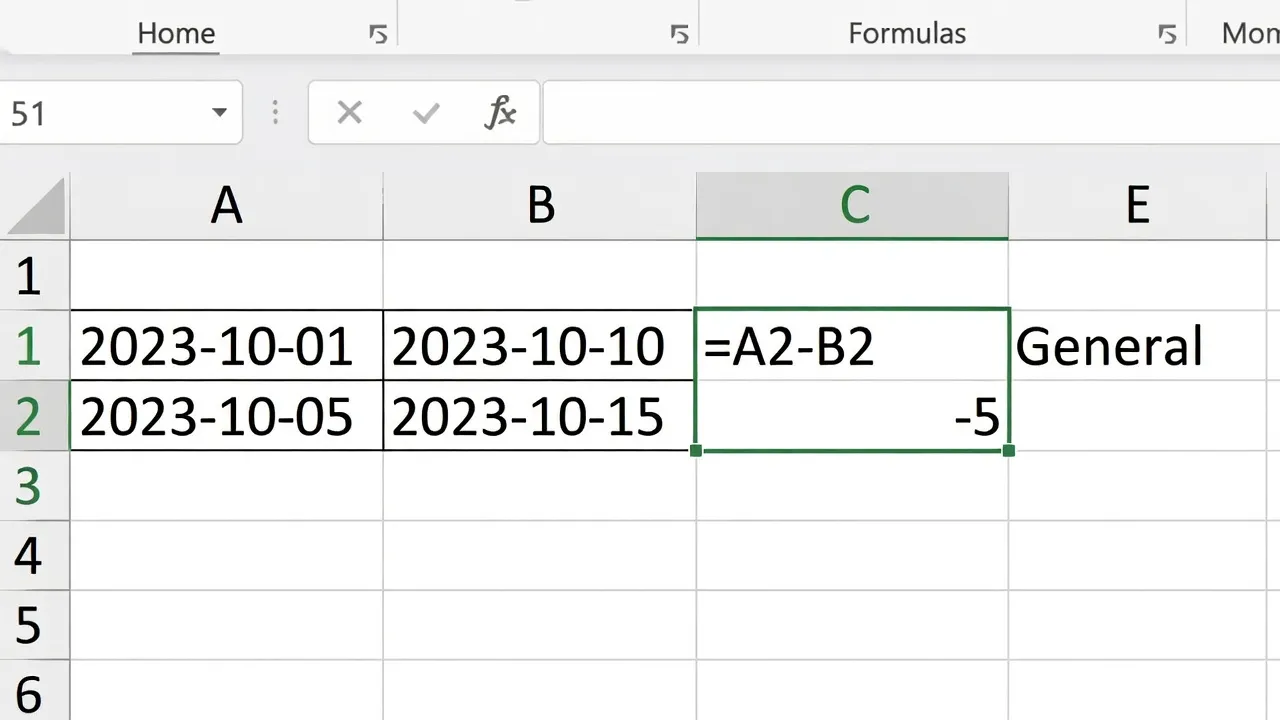
If cell C2 displays a date like 1/09/1900 instead of a count, Excel auto-formatted the result as a date. Select cell C2, open the format dropdown on the Home tab, and switch it to General or Number.
Step 2: Exclude weekends and holidays with NETWORKDAYS
Use the NETWORKDAYS function when calculating days between dates in excel to remove Saturdays, Sundays, and optional holidays. Standard subtraction includes all 7 calendar days, which distorts payroll and project estimates.
To perform a basic calculation of days between two dates in excel without weekends, enter this formula:
=NETWORKDAYS(A2, B2)
If your company observes specific holidays, enter those holiday dates into a separate column (such as E2:E5). Then add that range as the third argument:
=NETWORKDAYS(A2, B2, E2:E5)
According to Microsoft's NETWORKDAYS guide, this formula automatically includes both the start and end dates in the count if they fall on working days.
If your business operates on non-standard weekends (like working Saturdays), use =NETWORKDAYS.INTL(A2, B2, 11) instead. The weekend parameter 11 configures Excel to treat only Sunday as a day off.
For single-off project planning where setting up custom Excel ranges feels tedious, DateMath offers a free business days calculator that instantly toggles custom weekend schedules online.
Step 3: Calculate full years, months, or remaining days with DATEDIF
Use the hidden DATEDIF formula in Excel to express the duration between dates in complete years, months, or days. Excel does not display DATEDIF in its autocomplete menu, but the function remains active for backward compatibility.
To run this excel formula to count days between two dates in specific interval formats, type:
=DATEDIF(A2, B2, "D")
Change the third argument in quotes to match your reporting need:
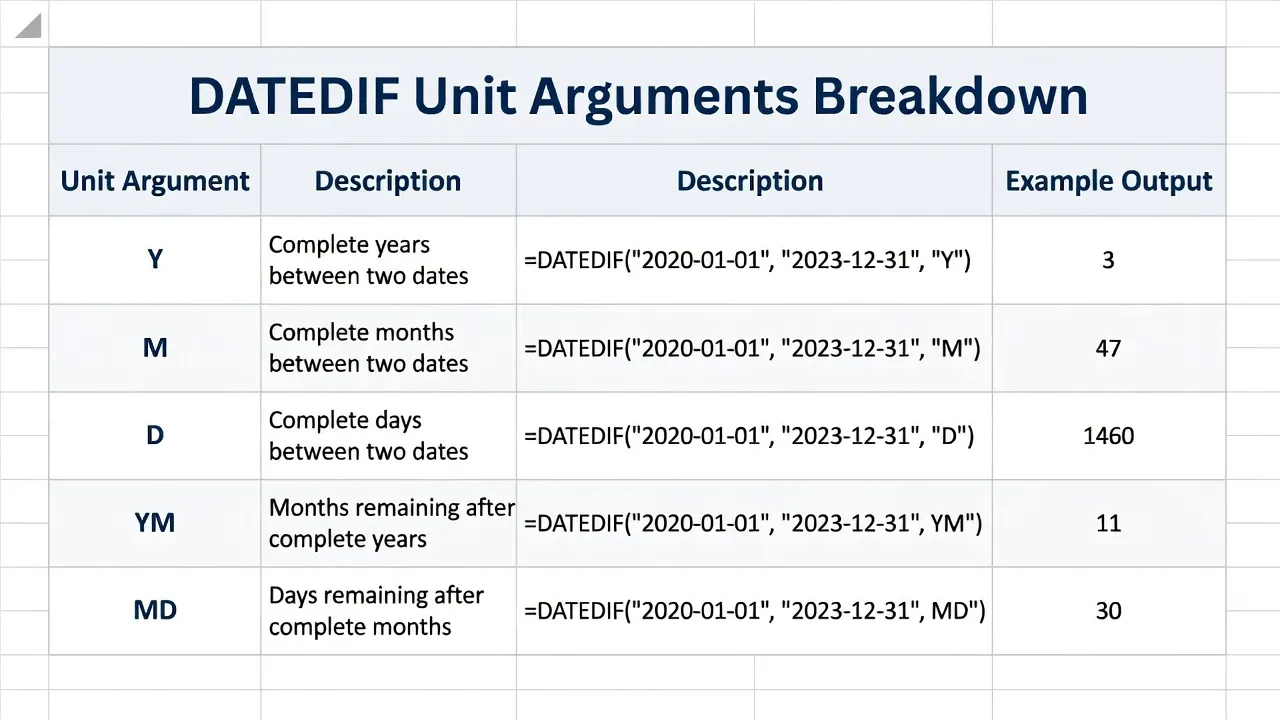
"Y"returns total completed years between dates."M"returns total completed months."D"returns total calendar days (equivalent to standard subtraction)."YM"returns remaining months after subtracting full years."MD"returns remaining days after subtracting full months.
For instance, if cell A2 holds 2025-01-01 and cell B2 holds 2026-10-23, =DATEDIF(A2, B2, "Y") returns 1, while =DATEDIF(A2, B2, "YM") returns 9.
Be careful with the "MD" argument. Microsoft's documentation notes known calculation anomalies in "MD" when dates involve short months or leap years, so use direct subtraction for precise daily audit trails.
Step 4: Calculate future or past dates by adding or subtracting days
To add or subtract days from a starting date, use standard math operators (=A2+30) or the WORKDAY function. This allows you to construct dynamic project schedules and contract expiration trackers.
If cell A2 contains your starting date, entering =A2+45 calculates the calendar date exactly 45 days in the future. Subtracting days works identically (=A2-30).
When calculating delivery dates that depend exclusively on business days, use the WORKDAY formula:
=WORKDAY(A2, 15, E2:E5)
This formula starts at cell A2, skips 15 business days ahead, avoids all weekends, and skips any holiday listed in cells E2:E5.
Formula syntax below was verified against current Excel updates in 2026. As of October 2026, Microsoft's 1900 date system remains the default setting across Windows versions, as explained in Microsoft's Excel date system overview.
If you are away from your workstation and need to verify project timelines on a smartphone, checking your target date with DateMath's days from today web tool bypasses worksheet setup completely.
When to use Excel vs a dedicated date calculator tool
Excel is ideal for bulk datasets and automated spreadsheets, while dedicated date calculators handle fast lookup tasks. Choosing the right tool depends on whether you are analyzing thousands of rows or double-checking a single invoice deadline.
Use Excel formulas when:
- You manage large tables with hundreds of employee start dates or customer contracts.
- You build automated financial dashboards that update daily.
- You need custom nested formulas that combine date math with financial logic.
Use a dedicated web tool like DateMath when:
- You need an instant answer without opening software or writing formula syntax.
- You need to verify time card hours or week numbers on a mobile phone.
- You want to eliminate risk from Excel formatting bugs like five-digit serial outputs.
Frequently Asked Questions
How do I calculate days between two dates in Excel without weekends?
Use the formula =NETWORKDAYS(start_date, end_date). This automatically excludes Saturdays and Sundays. You can also add a range of holiday dates as an optional third argument to exclude company holidays.
Why does my Excel date formula return a five-digit number like 45598?
Excel stores dates as serial numbers counting forward from January 1, 1900. If your cell displays a raw five-digit number like 45598, open the cell format menu on the Home tab and change the format from General to Date.
What is the excel formula for calculating days between two dates including the start date?
Standard subtraction (=B2-A2) excludes the starting day. To count both the start date and end date as full days, add 1 to your result: =(B2-A2)+1.
Why does the DATEDIF formula return a #NUM! error in Excel?
DATEDIF returns a #NUM! error if the start date occurs after the end date. Ensure your first argument references the earlier date and your second argument references the later date.
How do I calculate the number of months between two dates in Excel?
Use =DATEDIF(start_date, end_date, "M") to count completed months. If you need fractional months based on a 360-day calendar, use the =DAYS360(start_date, end_date)/30 formula.
Can I calculate days between two dates across different years in Excel?
Yes. Excel formulas automatically account for year boundaries, leap years, and month length differences because all calculations operate on underlying serial day numbers.
What is the difference between DAYS and NETWORKDAYS in Excel?
DAYS calculates total calendar days between two dates including weekends. NETWORKDAYS calculates working days only, automatically removing weekends and any holiday dates specified in your parameters.